

|
Getting your Trinity Audio player ready...
|
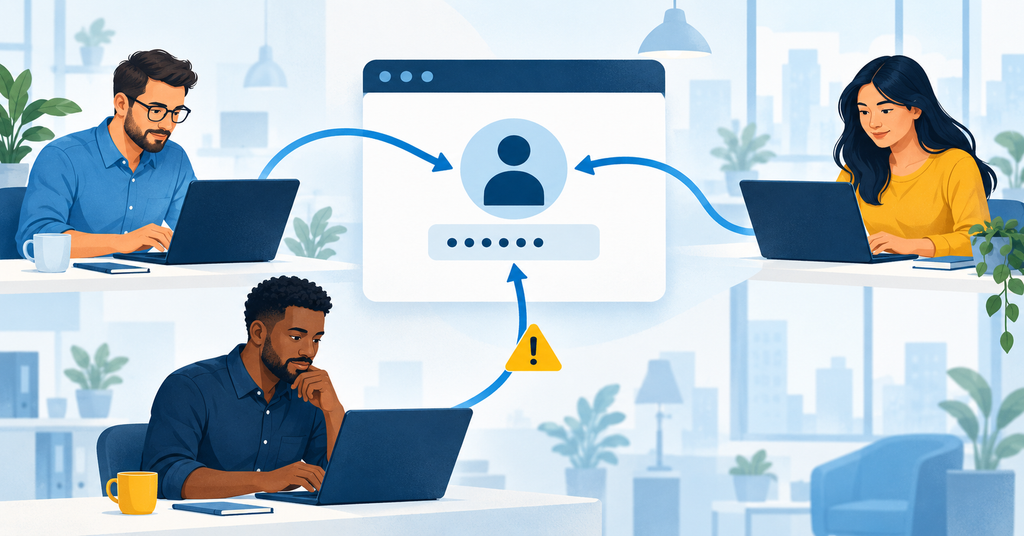
Shared logins often begin with a simple request: “Can you send me the password?”
An employee needs to send an invoice, update the company website, or look up a customer record. A colleague shares the team’s login, and the employee finishes the task. Creating another account can feel unnecessary when an existing one works.
The username might be accounts@yourbusiness.com, “admin,” or the name of someone who left the company years ago. Employees may save the password on several computers, share it in a chat thread, or list it in a shared spreadsheet.
Everything seems fine until something goes wrong.
A customer’s bank details change. An important record disappears. Someone signs in from an unfamiliar location. When you review the activity, every action belongs to the same account.
Several employees know the password. Former staff may still have it saved. Figuring out who actually used the account becomes difficult.
That’s the problem with shared logins: a shortcut that saves a few minutes can create lasting gaps in business account security.
How Shared Accounts Become Part of Everyday Work
Most businesses don’t deliberately build their processes around shared passwords. The arrangement usually develops as the company grows.
Perhaps the business purchased a software subscription when only two people needed it. One person created an account and passed the login along. Each new employee received the same credentials because that was how everyone had always accessed the system.
Sometimes additional users cost more. Older software may offer only one login. In other cases, the software already includes individual accounts, but nobody has set them up.
Shared email addresses can cause similar confusion. Employees may all sign in directly to sales@, support@, or accounts@ without realizing that shared mailboxes and delegated access provide other options.
Once a shared login becomes familiar, people rarely question it, until access needs to change or suspicious activity appears.
Shared Logins Make Employee Activity Harder to Trace
When several people use one account, the activity history usually identifies the account rather than the person behind it.
You might see that someone downloaded a report, deleted a file, or changed payment instructions. What you may not see is which employee performed that action.
Even an ordinary mistake becomes harder to resolve. Instead of asking one person about a change, you have to reconstruct what several employees were doing.
The stakes rise when an action affects customer information or financial transactions. Did an authorized employee make the change, did someone who recently left still have access, or did an attacker use a stolen password?
The UK National Cyber Security Centre recommends separate work accounts for each person. Its guidance explains that shared accounts make actions harder to attribute and can increase the information exposed during an account compromise. National Cyber Security Centre
A Stolen Shared Password Can Expose the Entire Account
A password used by several employees has to reach all of them.
That often leaves copies in emails, messages, documents, and browser password stores. Every additional location gives attackers another place to find the password.
One employee might save it in a personal browser profile. Another could enter it on a compromised computer. Someone else may reuse the password for an unrelated service.
If an attacker obtains the credential and gets past any additional sign-in protections, they can use the permissions assigned to that account.
Shared use can also make suspicious activity less obvious. Staff might assume a sign-in from an unfamiliar device or location comes from a colleague working remotely.
Individual accounts give your IT provider a clearer starting point for investigating unusual activity. They also make it possible to restrict one person’s account while other employees continue working. Disabling a shared login, by comparison, may interrupt an entire department.
Removing Former Employees Becomes More Complicated
With an individual account, your IT provider can block the departing employee’s sign-in, revoke active sessions, and remove their access to business systems.
Shared logins require additional work.
The former employee may still know the password or have it saved on a device. Removing their permission to use a password manager doesn’t erase credentials they previously viewed or copied.
The shared password therefore needs to change, and everyone who still needs access must receive the replacement securely. Connected applications or devices may also need updating.
Because that process can be inconvenient, some businesses put it off. The result is an account that a former employee may still be able to access.
Australian government guidance calls for changing credentials when shared account membership changes. Individual accounts reduce that disruption because your IT provider can remove one person’s access without affecting everyone else.
Shared Logins Complicate Multi-Factor Authentication
Multi-factor authentication, or MFA, adds another check to the sign-in process. Depending on the service, that could involve an authentication app, a security key, or approval on a registered device.
Sharing the account can make that extra step awkward.
An employee tries to sign in, but the approval request goes to a colleague’s phone. That colleague is in a meeting, on vacation, or no longer works for the company.
Over time, staff may start forwarding codes or approving requests for one another. Those habits can make it harder to recognize an unexpected sign-in attempt.
Some platforms support multiple security keys or passkeys for an account. Where sharing is unavoidable, your IT provider can assess whether those options are appropriate.
For everyday employee access, individual accounts usually make MFA easier to manage. Each person uses their own authentication method, and your IT provider can remove their access when their role changes.
Shared Logins Give Everyone the Same Permissions
Employees who share a login generally inherit whatever access that account provides.
Someone who only needs to check a customer record might also be able to export the entire customer list. A marketing employee making a website edit could have access to billing details, user management, and security settings.
Individual accounts let you assign permissions according to each person’s responsibilities.
Your bookkeeper can work with financial records without receiving unrelated administrator access. Your marketing team can publish content without having permission to change every website setting.
This approach follows the principle of least privilege: give people the access required for their work and review it as their responsibilities change.
Your Team Can Share an Inbox Without Sharing a Password
Several employees may need to manage messages sent to support@yourbusiness.com or accounts@yourbusiness.com. A common email address doesn’t require everyone to use the same credentials.
Microsoft 365 shared mailboxes let authorized employees access a common inbox through their own accounts. Microsoft recommends blocking direct sign-in for shared mailbox accounts because employees access these mailboxes through their own accounts.
An administrator assigns the necessary mailbox permissions. When someone leaves or changes roles, an administrator can remove that person’s mailbox permissions without affecting the rest of the team.
Other platforms may offer similar features called delegated access, team access, user roles, or shared inboxes.
Before passing along an email password, check which collaboration features your service already includes.
Administrator Credentials Need Tighter Control
Shared administrator accounts carry additional risk because their permissions can affect the whole system.
Depending on the platform, an administrator may be able to create users, change security settings, access sensitive information, or remove another employee’s access.
Using that account for routine work increases the potential impact of a mistake or stolen credential.
Where the system supports it, give each administrator a named account. Employees should use standard accounts for daily tasks and separate administrator accounts only for tasks that need elevated permissions.
Your IT provider should also review existing administrator permissions. Someone who needed extra access for a previous project may still have it long after that work ended.
Keeping those permissions current helps reduce unnecessary exposure.
Safer Options When a System Allows Only One Login
Some older applications, devices, and online services don’t support individual users. Replacing them may take planning, particularly when they support an essential business process.
Until a better option is available, store the shared credential in an approved business password manager.
Each employee should access the password manager through their own account with MFA enabled. Limit access to people who need the credential, and review that access when employees join, change roles, or leave.
Some business password managers can record credential access or use. Those records can help with oversight, although they may not identify every action taken inside the application itself.
The NCSC recommends delegated access wherever possible. When employees must share a password, it advises keeping the authorized group small, reviewing access, and changing the password whenever someone no longer has permission to use the account. National Cyber Security Centre
Every remaining shared account should also have an owner who understands its purpose, recovery options, authorized users, and connected systems.
Handle Service Accounts Separately From Employee Logins
During an access review, your IT provider may identify service accounts. These support software, devices, or automated processes rather than everyday employee sign-ins.
For example, a backup application might use a service account to reach a server. Another account could allow two business applications to exchange information.
These accounts need different handling from a login shared among employees.
A service account should have the permissions required for its specific task, protected credentials, a documented purpose, and a designated owner. Where supported, managed identities or managed service accounts can reduce manual credential handling.
Your IT provider should also document which systems depend on the account and how they will replace its credentials if someone exposes them.
That preparation helps prevent an account cleanup or password change from unexpectedly interrupting backups, integrations, or other essential processes.
Move Away From Shared Logins Without Interrupting Work
Start by listing the systems your employees use. Include accounting software, customer management platforms, social media tools, website administration, email, cloud storage, and specialist applications.
Check subscription records, your business password manager, and approved browser password stores. Older messages and spreadsheets may also reveal accounts your team has overlooked.
For each shared login, record who uses it, what they need to do, and which systems depend on it. Then determine whether individual accounts, delegated access, a shared mailbox, or another supported option would work.
Create the replacement accounts, assign appropriate permissions, and enable MFA. Test that employees can complete their tasks before retiring the old login.
Where sharing must continue, use an approved password manager, document the account owner, and change the credential when someone leaves the authorized group. Review active sessions, recovery details, and registered authentication methods as well.
Make access reviews part of onboarding, role changes, and offboarding. Employees are less likely to fall back on shared passwords when there’s a clear process for getting the access they need.
Shared logins can be easy to overlook, especially when they still seem to work. Reviewing them now can make daily access easier to manage and give your business a clearer response when something goes wrong. Contact Twintel to learn how to strengthen account security and manage employee access.

Twintel has grown into an expansive, full team of IT services professionals, acting as the outsourced IT department of non-profits, small to mid-size businesses, and enterprise-level corporations in Orange County, across California, and nationally.
Today, it’s the strength and deep expertise of the Twintel team that drives positive outcomes for clients. Each of the support staff, technicians, and engineers works diligently each day to make sure that the companies served have the seamless, secure, and stable IT environments needed to allow them to pursue their organizational objectives.