

|
Getting your Trinity Audio player ready...
|
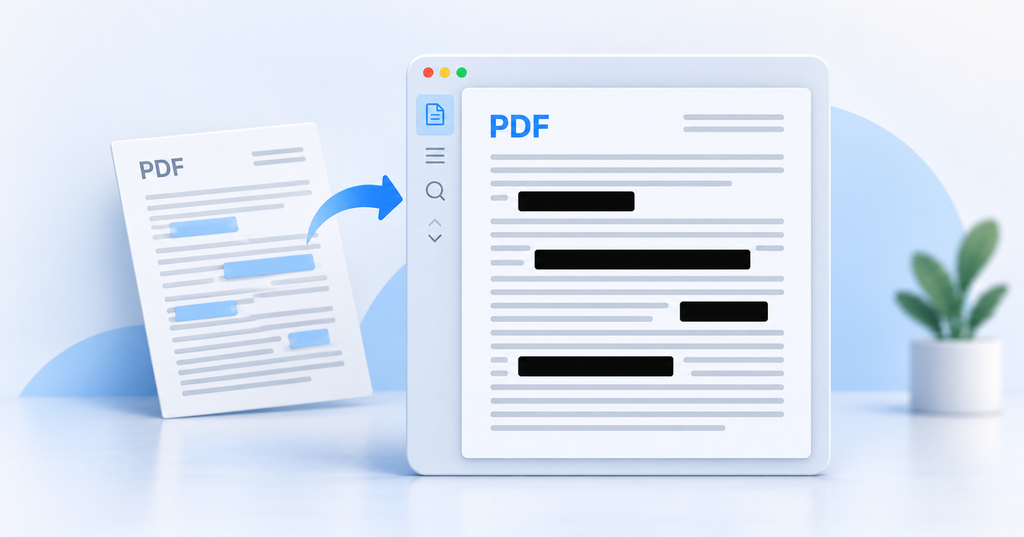
You’re about to email a report when you spot an account number on page three. Drawing a black box over it seems like a quick fix. But if that box is just an annotation, the original text can still be in the PDF. The person who receives it may be able to select the text, copy it, and read the number.
To redact a PDF, use a tool that removes the underlying text or image. Then check the saved copy for anything that could still give away the information, including comments, attachments, and details that show up elsewhere in the document.
Choose a PDF Redaction Tool
Look for a PDF editor with a dedicated redaction feature for text and images. You’ll also want a way to remove hidden data such as comments and document properties. PDF editors often call this step sanitization.
Adobe’s PDF redaction tutorial lists Acrobat Pro, Premium, and Studio as plans that include redaction. The steps below use the desktop app’s Redact a PDF tool.
On a Mac, Preview’s Redaction Selection tool works on text. Apple says the redaction becomes permanent when you close the document, but related table of contents entries can still reveal the original wording. Review those entries separately and use a tool that can handle image redaction and hidden data when needed. See Apple’s guide to annotating PDFs in Preview.
Use software your business has approved for confidential documents. If you’re considering an online PDF editor, check whether it uploads the file, where it processes the data, and how long it keeps copies.
Make a Working Copy Before You Redact
Duplicate the PDF before you start. Applied and saved redactions are permanent, so keep the original in a protected location that only authorized staff can access.
Decide what the recipient needs to see and spell out what should come out. For a client report, that might mean keeping the project findings while removing internal pricing and references to another customer. If that customer’s identity is confidential, tell the person doing the redaction to check names, contact details, screenshots, and any project references that could identify them. “Remove the confidential parts” leaves too much room for guesswork.
Save the finished file under a clear name, such as project-report-client-copy.pdf. Check the filename for sensitive details, too. Keep any record of what you removed and who approved it with your internal records.
Apply Redactions in Adobe Acrobat
Menu names vary by editor. In the Acrobat desktop app, follow these steps.
- Open the working copy. Under All tools, choose Redact a PDF.
- Select Redact text and images, then drag over the content you want to remove.
- Review the marked areas and select Apply.
- Turn on the option to sanitize the PDF and remove hidden information. Select Continue.
- Save the PDF under a distinct filename in the intended location.
The marks show what you’ve selected for removal. Complete the redaction by applying the marks and saving the file. Then close the PDF and reopen the saved copy so you can review the version you’ll actually send.
Find Sensitive Details That Appear More Than Once
A customer’s name might appear in the main report, an appendix, and a screenshot of an email. Acrobat’s Find text and redact tool can locate words, phrases, and supported patterns in searchable text. Review the matches before applying redactions.
Search for variations, too. Someone’s full name might appear on the first page, with only their last name used later. An account number might have spaces or hyphens in one section and appear as a single string of digits in another.
Read through the PDF for clues a keyword search would miss. A job title, email address, or project description could still identify someone. Use the recipient’s access permissions to decide which of those details to remove.
Redact Scanned Pages and Screenshots
Words in a screenshot or scan can be part of the image itself. Some scanned PDFs also have a searchable text layer created by optical character recognition (OCR), which converts words in an image into text you can search or copy.
On a scanned bank statement, for example, an account number could appear in both the page image and the searchable text. Use a tool that supports image redaction, then check that the number is gone from the visible page and any searchable text layer.
Look through every scanned page, even if your search returns zero matches. OCR can mistake a zero for the letter O or miss a line entirely. Give screenshots, signatures, and handwritten notes the same visual check.
Remove Metadata and Other Hidden PDF Data
An internal comment might explain the very price you removed from a report. The PDF’s metadata could include an author’s name or an internal document title. Embedded attachments can carry sensitive information of their own.
In Acrobat, Sanitize document lets you remove hidden information in bulk or review the items and choose what to remove. Save the cleaned PDF, then confirm the recipient can still open and use the information they need. Review any attachment you intend to include and redact it separately if needed.
Check the Redacted PDF Before You Share It
Open the final copy and read it as the recipient would. Check that the pages still make sense and that each detail you meant to remove is gone. Search for the names, numbers, and phrases you redacted. Try copying text around a redaction into a plain-text editor such as Notepad and see what comes through.
Searching and copying are spot checks. Use them alongside a page-by-page visual review and a check for hidden data. For especially sensitive documents, ask a colleague to compare the final PDF against the removal instructions. The UK Information Commissioner’s Office also recommends checking documents before disclosure and clearly labeling both versions.
Before you hit Send, open the attachment from the draft email or check the PDF at the exact link you plan to share. Make sure it’s the reviewed copy and that only the intended recipients have access. Keep the original in its protected location.
If your team shares sensitive PDFs regularly, agree on three things in advance: which tool to use, who decides what to remove, and who checks the copy before it goes out. For help choosing approved tools and setting up secure file-sharing practices, contact Twintel today.

Twintel has grown into an expansive, full team of IT services professionals, acting as the outsourced IT department of non-profits, small to mid-size businesses, and enterprise-level corporations in Orange County, across California, and nationally.
Today, it’s the strength and deep expertise of the Twintel team that drives positive outcomes for clients. Each of the support staff, technicians, and engineers works diligently each day to make sure that the companies served have the seamless, secure, and stable IT environments needed to allow them to pursue their organizational objectives.