

|
Getting your Trinity Audio player ready...
|
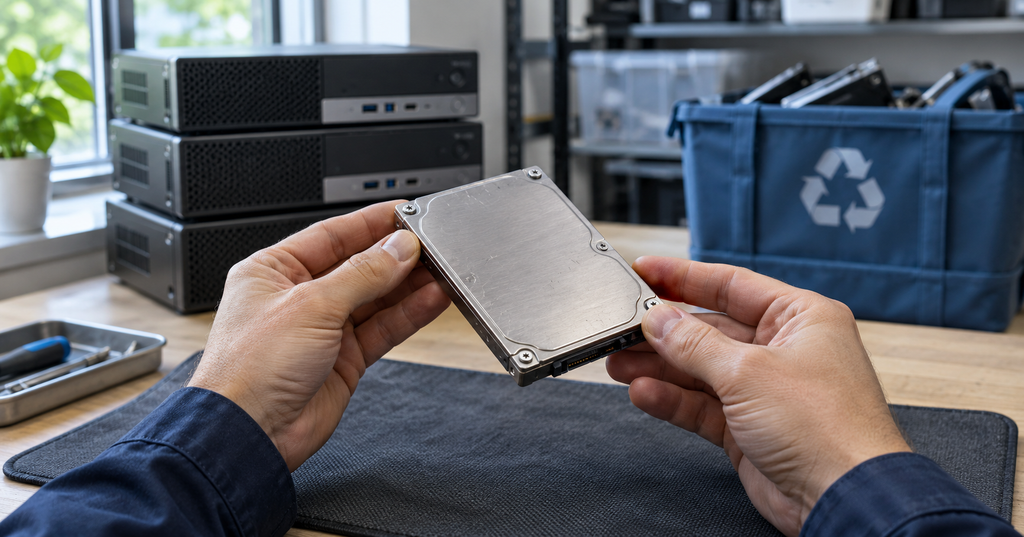
An employee asks if they can take home a company laptop you just replaced. It still works, and you’d rather see someone use it than let it collect dust. Then you remember who had it last: someone in accounting. Are there still payroll spreadsheets in the Downloads folder?
Whether you plan to sell, donate, or recycle old business computers, give IT time to check the files you’re keeping, securely erase every drive, and document where each device ends up. If you’re still deciding which devices to retire, see our guide on when to replace business computers.
Back Up Files From Old Business Computers
Say your business switched accounting software a few years ago. There’s still a database from the old system on a computer you’re replacing, so you copy it along with the rest of your files.
A few months later, you need an old customer record. You find the database, but the new computer has no software that can open it.
Try opening older files and databases from the replacement computer before IT erases the original drive. If a file needs a specific application or version, IT can check what’s required or export the records to a format your team can still use. It’s an easy detail to miss when everyone’s daily work has already moved to the new computer.
How to Wipe Old Business Computers Before Handover
Once you’ve confirmed the files you need are usable, ask IT to erase the drive. That includes dealing with traces of files people deleted months or even years ago.
On a traditional hard disk drive (HDD), deleting a file usually frees up its space for reuse. The data can stay there until something overwrites it, which is why the UK’s National Cyber Security Centre recommends sanitizing storage before it leaves your control.
Check the Drive Type and Encryption History
A solid-state drive (SSD) manages storage differently. Its controller can move data between blocks of memory before clearing the old blocks. It also reserves space that the operating system can’t directly access. Overwriting the files you can see may miss some of the places the SSD has stored data. IT should choose a method suited to that drive and verify the result.
Ask IT to check for a second drive, too. It may still hold files or software from a previous employee, even if the person who used the computer last never opened it.
For an encrypted drive, cryptographic erase may be an option. It works by securely erasing the keys needed to read the data. Whether it’s appropriate depends on the encryption and how copies of the keys are handled. If sensitive files were ever stored on the drive without encryption, IT should choose a method that also addresses those copies.
Review the Reset Options for Windows and Mac
In Windows, Remove everything reinstalls Windows and removes personal files, apps, and settings. The optional Clean data setting makes deleted files harder to recover. Microsoft describes it as a consumer feature that falls short of government and industry data-erasure standards. Ask IT to use a process that meets your business’s requirements. Keep my files preserves user files, which may include business records.
On a Mac, Erase All Content and Settings is available on models with Apple silicon or an Apple T2 Security Chip running macOS Monterey 12 or later. For older Macs or earlier versions of macOS, follow Apple’s instructions for that model and operating system.
Remove Work Accounts and Release Device Management
If your business manages computers through Microsoft Intune, plan the order of operations with IT before you remove a device from management. Retire removes managed data and settings while keeping personal files. On Windows and Macs, Delete triggers a Retire command. Verify drive erasure separately before handing over the computer.
If a Mac has Activation Lock enabled, clear it before handover so the next owner can set up the computer. On supported Macs, Apple’s Erase Assistant signs out of Apple services and turns off Activation Lock.
Handle Failed Computers and Damaged Drives
A failed power supply can stop a computer from turning on while leaving the drive intact. If the storage is removable, IT may be able to take it out and erase it separately. Before sending the computer for recycling, check for any other storage that could still hold business data.
If the drive itself has failed and IT can’t complete or verify erasure, secure destruction may be necessary. A single hole or a bent casing can leave parts of the drive readable. Ask your IT provider to arrange a method suited to the storage and the sensitivity of its data, and keep the drive in secure storage until it’s processed.
How to Recycle Old Business Computers and Track Disposal
Before booking a pickup, ask where your computers will go and who will erase or destroy the drives. If the recycler uses a subcontractor, ask who it is and how it protects the equipment.
Store computers securely if they’re waiting for collection with data still on them. Ask the recycler how it protects the equipment in transit and while it waits to be processed. Your IT provider can help check the recycler’s credentials and any local requirements for business electronics.
If a drive fails during erasure, log its serial number and what happened next. It may need a different erasure method, secure storage while it awaits further work, or destruction.
For the full batch, record each computer and drive by serial number, the erasure or destruction method, who performed the work, the date, and the verification result. Keep those records with your equipment register and update it with each device’s final destination. That way, if someone asks what happened to a specific drive, you can look it up by serial number. NIST provides a sample Certificate of Sanitization in Appendix C of its guidelines.
If you’re getting ready to sell, donate, or recycle old business computers, contact Twintel for help protecting your data before the equipment leaves your office.

Twintel has grown into an expansive, full team of IT services professionals, acting as the outsourced IT department of non-profits, small to mid-size businesses, and enterprise-level corporations in Orange County, across California, and nationally.
Today, it’s the strength and deep expertise of the Twintel team that drives positive outcomes for clients. Each of the support staff, technicians, and engineers works diligently each day to make sure that the companies served have the seamless, secure, and stable IT environments needed to allow them to pursue their organizational objectives.